
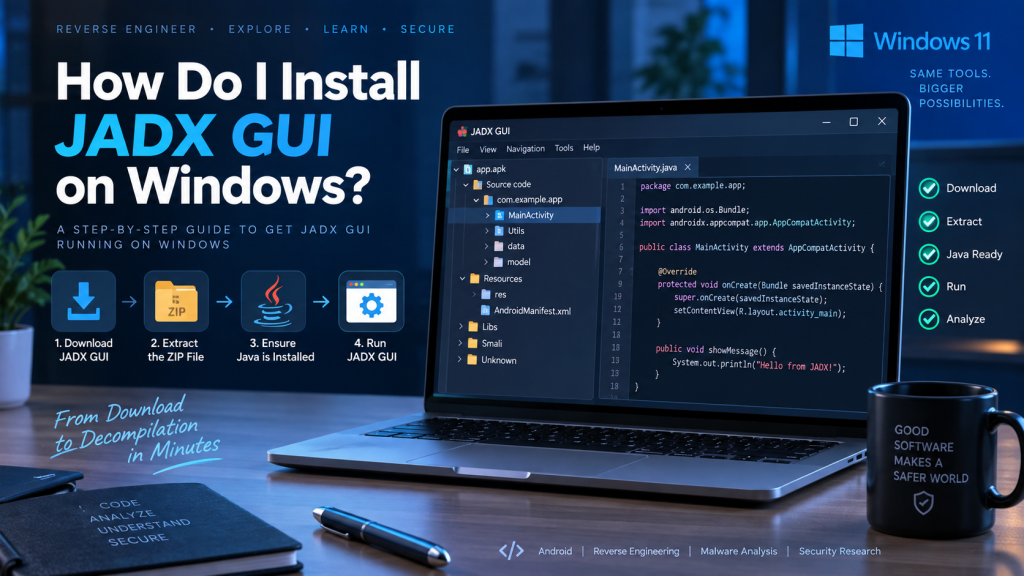
JADX GUI is a popular graphical tool for viewing and analyzing Android application files. It can decompile APK, DEX, AAB, JAR, and several related formats into readable Java-like source code. Developers, security researchers, and Android learners commonly use JADX GUI because its visual interface makes navigating application code easier than working entirely through a command line.
Installing JADX GUI on Windows is relatively simple because the official release comes as a compressed package rather than a traditional Windows installer. You mainly need a compatible 64-bit Java installation, the official JADX package, and a folder where the extracted files can remain permanently.
Read More: Is JADX GUI Free to Use?
JADX GUI Windows Requirements
Before installing JADX GUI, make sure your Windows computer meets the basic requirements. The official JADX documentation currently recommends Java 11 or later in a 64-bit version for running the downloaded release.
Basic requirements include:
- Windows 10 or Windows 11 with a 64-bit environment
- Java 11 or newer, preferably a current 64-bit JDK installation
- Enough free storage for JADX files and extracted APK projects
- Permission to extract ZIP archives and run batch files
Using an updated Java installation can help prevent startup errors and compatibility problems.
How to Install JADX GUI on Windows
JADX does not normally require a traditional setup wizard on Windows. You download the official ZIP release, extract it, and launch the GUI from its bin directory.
- Install a supported 64-bit Java version on your Windows PC.
- Visit the official
skylot/jadxGitHub repository and open its Releases section. - Download the latest stable JADX ZIP release rather than an unofficial copy.
- Locate the downloaded ZIP file inside your Downloads folder.
- Right-click the archive and select Extract All.
- Move the extracted JADX folder somewhere convenient, such as your Documents or development tools folder.
- Open the extracted folder and enter the
bindirectory. - Double-click
jadx-gui.batto launch the graphical interface. - Wait for JADX GUI to open, then load an APK or another supported Android file for analysis.
The official project specifically notes that Windows users can launch its .bat files by double-clicking them.
Where Should You Download JADX GUI?
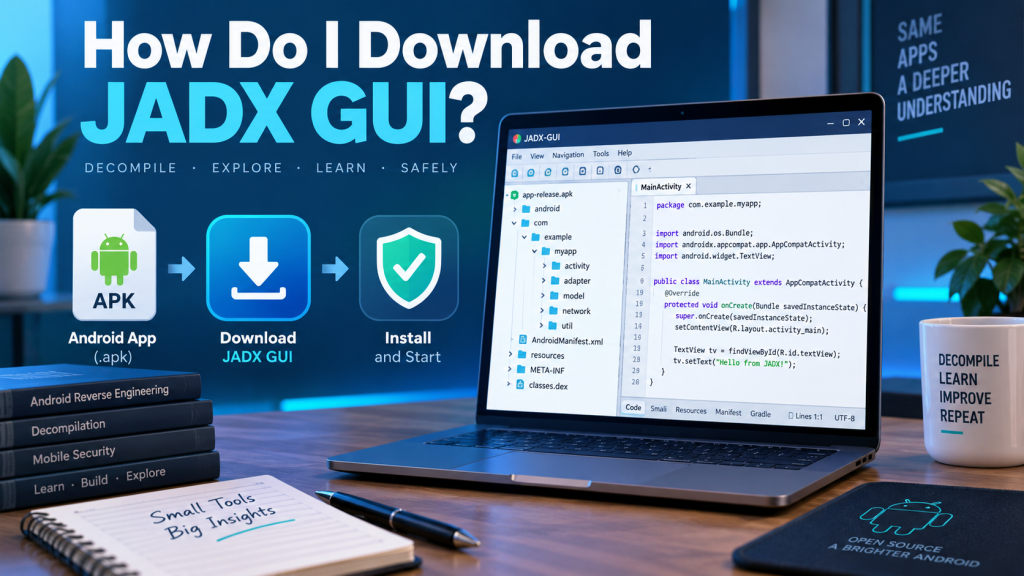
The safest source is the official JADX GitHub repository maintained under skylot/jadx. Its Releases section provides stable versions, while the project also provides unstable development builds for users who need newer experimental changes.
For most users, the stable release is the better choice. Development builds may contain new features, but they can also introduce bugs or unexpected behavior.
Avoid random software download websites that repackage JADX. Third-party packages may be outdated, modified, or bundled with unwanted software.
How to Open JADX GUI After Installation
Once the package has been extracted, open the JADX directory and locate the bin folder. Running jadx-gui.bat launches the graphical version, while the standard jadx script starts the command-line version.
You can also create a desktop shortcut for easier access. Right-click jadx-gui.bat, choose the shortcut option available in Windows, and place the shortcut on your desktop.
Opening an APK File in JADX GUI
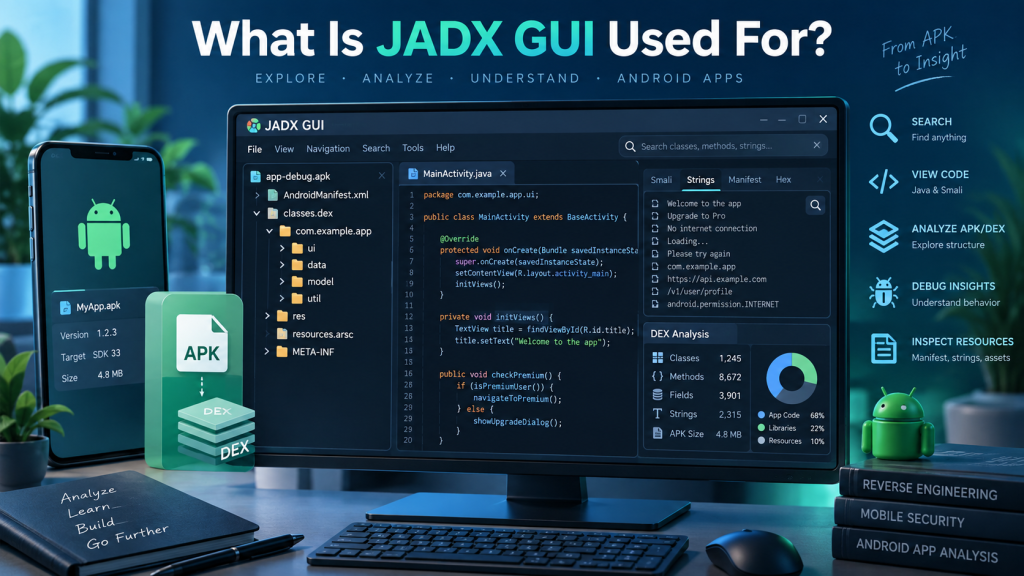
After JADX GUI starts, you can open an Android package from the interface. JADX supports formats including APK, DEX, AAB, AAR, ZIP, JAR, CLASS, and several additional Android-related formats.
JADX GUI can provide features such as:
- Decompiled source-code viewing with syntax highlighting
- Full-text search across application code
- Jump-to-declaration navigation
- Usage searching for classes, methods, and variables
- Android resource and manifest inspection
- Deobfuscation support for easier analysis
Keep in mind that decompilation is not always perfect. The official project warns that JADX may not reconstruct 100 percent of an application’s original source code, so some errors or incomplete sections can appear.
JADX GUI Does Not Start on Windows
Java configuration is one of the first things to check when JADX GUI refuses to open.
Open Command Prompt and run:
java -version
If Windows cannot find Java, install a compatible 64-bit Java version or correct your Java environment configuration.
Another possibility is that the archive was not fully extracted. Running jadx-gui.bat directly from inside a ZIP preview can cause problems because JADX expects its supporting files and folders to remain together.
Fixing Java Compatibility Problems
Older Java releases may cause JADX to fail during startup. The official project currently states that Java 11 or later should be installed for regular Windows releases. Building JADX directly from source has a higher requirement, with the project’s current documentation specifying JDK 17 or later.
Therefore, users who only want to run JADX GUI should not confuse the normal runtime requirement with the build-from-source requirement.
Is JADX GUI Safe to Install?
JADX is an open-source project distributed through its official GitHub repository. Downloading the stable package directly from that source reduces the risk of receiving modified or bundled versions.
However, the files you analyze with JADX may come from unknown sources. APK files should still be treated carefully. Reverse engineering an APK does not automatically make the application safe.
Only analyze software you are legally authorized to inspect, particularly when dealing with proprietary applications or protected intellectual property.
Best Practices After Installing JADX GUI
Keep your JADX version reasonably current so you benefit from compatibility improvements, bug fixes, and newer Android-format support.
It is also useful to keep JADX in a dedicated folder rather than deleting extracted files after every session. Since the Windows release works directly from its extracted directory, maintaining a permanent folder makes future use much easier.
Conclusion
Installing JADX GUI on Windows requires only a compatible Java installation, the official JADX ZIP package, and a few extraction steps. After downloading the stable release from the official project, extract it, open the bin folder, and launch jadx-gui.bat.
Once configured, JADX GUI provides a convenient interface for examining Android APK files, browsing decompiled source code, searching classes, and reviewing application resources. Using official downloads and an updated Java environment provides the most reliable Windows experience.
Pingback: Can JADX GUI Decompile APK Files?