
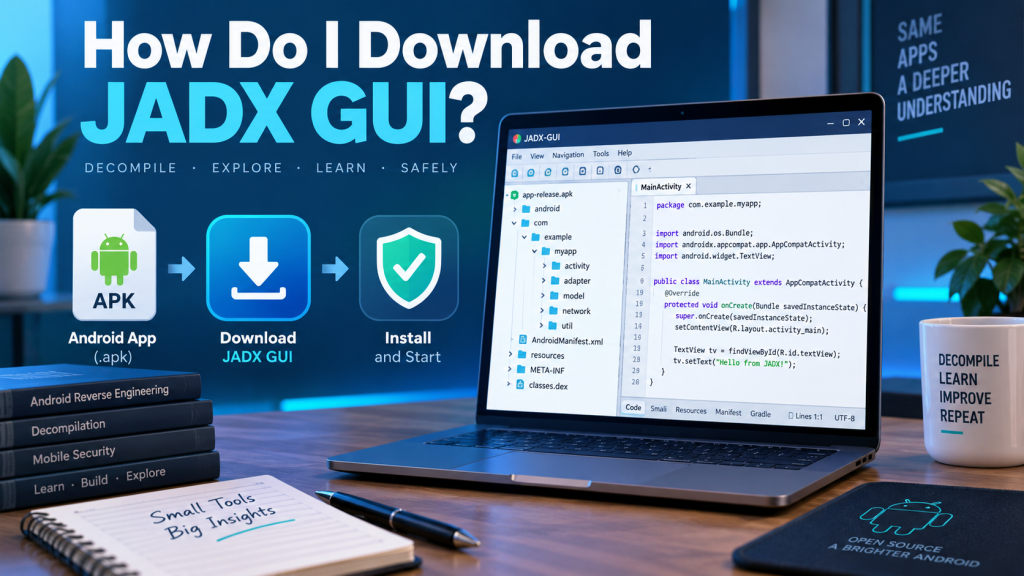
JADX GUI is a popular graphical tool used to inspect and decompile Android applications. It helps developers, security researchers, and advanced Android users view Java source code generated from APK, DEX, AAB, AAR, and several other supported file formats. The graphical interface makes code navigation easier by providing syntax highlighting, search tools, declaration jumping, and other useful features.
Downloading JADX GUI is relatively simple, but choosing a trusted source and checking system requirements are important. Using the official release helps reduce security risks while also ensuring that you receive a current, properly packaged version of the software.
Read More: What Is JADX GUI Used For?
What Is JADX GUI?
JADX is an open-source Dex-to-Java decompiler containing both command-line and graphical tools. JADX GUI provides the visual interface, allowing users to browse decompiled Android application code without relying entirely on terminal commands.
The GUI includes useful capabilities such as code highlighting, full-text search, finding usages, jumping to declarations, resource inspection, and support for Smali debugging. JADX can also decode AndroidManifest.xml and application resources.
It is important to remember that decompilation is not always perfect. The official project notes that JADX may not successfully reconstruct every part of an application’s original source code, so some decompilation errors can occur.
Where Should You Download JADX GUI?
The safest choice is the official JADX GitHub repository maintained under the skylot/jadx project. Official releases are published through the project’s GitHub Releases section.
Avoid downloading modified packages from unknown software websites, file-sharing platforms, or unofficial mirrors unless you can independently verify their integrity.
Official distribution options include:
- Stable releases from the official GitHub Releases page
- Latest development builds for users who need newer changes
- Homebrew installation on macOS
- Arch Linux package installation
- Flathub installation on supported Linux systems
For most users, the stable GitHub release is the best option because development builds may contain experimental changes or unresolved bugs.
JADX GUI System Requirements
JADX is built around Java, so your system needs a compatible Java environment. The official JADX documentation states that the packaged application requires a 64-bit Java 11 or later installation.
Before downloading, make sure your computer has sufficient storage space and a supported operating environment. Windows, Linux, and macOS users can run JADX, although installation methods differ slightly between platforms.
Users planning to build JADX directly from its source code should note that the current project instructions specify JDK 17 or later for building.
How Do I Download JADX GUI?
Follow these steps when downloading the official JADX GUI package:
- Open the official
skylot/jadxproject on GitHub and navigate to the latest Releases page. - Select the current stable release instead of an unofficial third-party package.
- Download the appropriate release archive provided for JADX.
- Save the compressed file somewhere easy to locate, such as your Downloads folder.
- Extract the downloaded ZIP archive using Windows extraction tools or another trusted archive utility.
- Open the extracted JADX folder and locate the
bindirectory. - Start
jadx-gui; on Windows, the GUI can be launched through the corresponding.batfile. - Once JADX GUI opens, load an APK, DEX, AAB, or another supported file for analysis.
The official instructions specifically recommend extracting the downloaded archive, opening its bin folder, and running jadx-gui for the graphical interface.
Setting Up JADX GUI on Windows
Windows users should first confirm that a compatible 64-bit Java installation is available. After extracting the JADX archive, open the bin folder.
The Windows package includes batch scripts that can be launched by double-clicking them. Running jadx-gui.bat should start the graphical interface when Java is configured correctly.
If the program immediately closes or fails to launch, checking the installed Java version is one of the first troubleshooting steps.
Installing JADX GUI on macOS
macOS users can work with the downloaded release package, but Homebrew provides another convenient installation method.
The official project supports installation using:
brew install jadx
After installation, JADX can be launched through the appropriate command or GUI interface. Homebrew can also simplify future package updates.
Installing JADX GUI on Linux
Linux users have several installation options depending on their distribution.
Arch Linux users can install JADX using the system package manager, while users of supported Linux distributions may choose the Flathub package. The official project documents both methods.
Using a package manager can make installation and future updates easier, although downloading the official archive remains another practical option.
What Files Can JADX GUI Open?
JADX supports considerably more than standard APK files. Current documentation lists support for formats including APK, DEX, JAR, CLASS, Smali, ZIP, AAR, ARSC, AAB, XAPK, and APKM files.
Support can vary depending on file structure and the application’s protection methods. Heavily obfuscated or unusual applications may produce incomplete output even when the file itself opens successfully.
Common JADX GUI Download and Setup Problems
One common problem occurs when Java is missing or outdated. If JADX GUI refuses to start, verify that a compatible 64-bit Java environment is installed and accessible.
Another issue can occur when users launch files directly from inside the compressed archive rather than extracting everything first. Extract the entire package before opening the program because supporting files are required.
Security software may occasionally warn about scripts or unfamiliar developer tools. Instead of disabling protection automatically, confirm that the package came directly from the official project and inspect the downloaded file if necessary.
Some APK files may also generate decompilation warnings. These do not automatically mean that JADX itself is broken. Obfuscation, unsupported bytecode patterns, or unusual application structures can prevent perfect source reconstruction. The JADX developers explicitly warn that complete decompilation cannot always be guaranteed.
Is JADX GUI Safe to Download?
JADX is an open-source project, and downloading its official release directly from the project’s GitHub repository is generally the safest approach.
The larger security risk often comes from the files being analyzed rather than JADX itself. APK files obtained from unknown sources may contain malicious code. Avoid installing suspicious APK files simply because you are inspecting them through JADX.
You can normally analyze an APK without installing it on your Android device.
Safety Tips When Using JADX GUI
Always keep both Java and JADX reasonably current. New releases may include bug fixes, compatibility improvements, and security-related updates.
Use official distribution channels whenever possible, avoid modified builds from unknown sources, and keep backups of important project files.
For suspicious Android applications, consider performing analysis inside an isolated test environment or virtual machine rather than using a computer containing sensitive information.
Stable Release vs Development Build
The official JADX project provides normal releases as well as unstable development builds.
Stable releases are normally better for everyday use because they have undergone more testing. Development builds are more appropriate when you specifically need a recently added feature or fix that has not reached the stable release yet.
Beginners should generally stay with the latest stable version.
How to Know JADX GUI Is Working Correctly
After launching JADX GUI, try opening a legitimate APK file you have permission to inspect. JADX should begin processing the application and display its package structure, resources, classes, and generated source code.
You should normally be able to browse classes, search text, inspect resources, and move between declarations.
Occasional warnings or imperfect Java output are possible because decompilers reconstruct source code from compiled applications rather than recovering the exact original development project.
Legal and Responsible Use
JADX is a legitimate development and reverse-engineering tool, but how it is used matters.
Analyze applications you created, applications you have authorization to inspect, open-source projects, or software where reverse engineering is permitted by applicable law or license terms.
Avoid using JADX to steal proprietary code, bypass licensing systems, distribute copyrighted application content, or interfere with software without authorization.
Conclusion
Downloading JADX GUI is straightforward when you use the official JADX GitHub repository. Choose a stable release, verify that a compatible 64-bit Java environment is installed, extract the downloaded package, and launch jadx-gui from the bin directory.Windows, macOS, and Linux users all have practical installation options, including platform-specific package managers. Most installation problems come from missing Java installations, incomplete extraction, unsupported environments, or issues with the APK being analyzed.
For the safest experience, download JADX only from trusted official sources, keep the software updated, and use the tool responsibly when examining Android applications.


Pingback: Is JADX GUI Free to Use?